Top 5 compared
The best drawing tablets
Sketch, paint and ink on a computer with a pen that draws a heavier line the harder you press.

As an Amazon Associate we earn from qualifying purchases. It costs you nothing extra. How this works
The top 5 at a glance
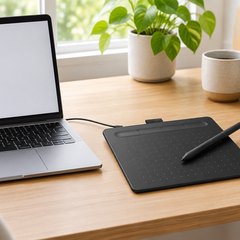
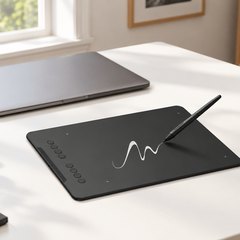
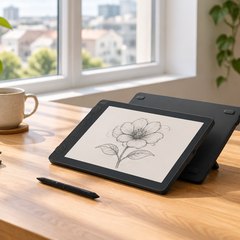
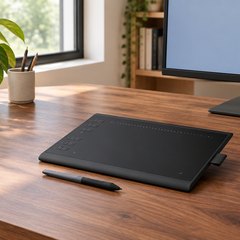
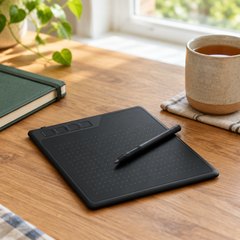
A drawing tablet turns a computer into a sketchbook: the pen senses how hard you press, so lines get thicker and darker just like a pencil. It’s how most digital illustration, comics and animation are made. There are two kinds: a pen tablet is a pad with no screen, and a pen display is a screen you draw on directly.
Drawing on a pad while watching the computer screen feels odd for a day or two and then becomes second nature, and a pad costs a fraction of a tablet with a screen. Every tablet here plugs into a computer or an Android phone, and the pads use pens with no battery to charge.
What matters
- A small pad fits beside a laptop; bigger allows longer strokes.
- Pressure levels and tilt, for natural brush strokes.
- Support for your computer, Chromebook or Android phone.
- Shortcut keys, for undo and brush size.
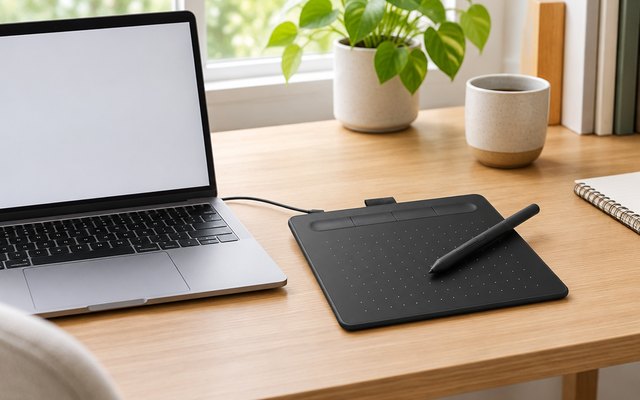
#1Wacom Intuos Small Drawing Tablet
$30–$50
A compact 6 × 3.7in pad that leaves room for a keyboard and mouse, with Wacom’s battery-free pen: the tablet powers it through electromagnetic resonance, so the pen has no battery to run flat. It works with Windows, Mac, Chromebooks and Android phones.
What owners say: As a first tablet it wins praise for drawing, design work and online classes, with the hotkeys close at hand. Setup is easy for many and a struggle for others, and a handful couldn’t get it working with their laptop.
Heads up: On Windows and Mac, download Wacom’s driver before plugging it in; Chromebooks and Android phones don’t need one.
A closer look: Registering it with Wacom unlocks the downloadable software offer, which includes a two-year Clip Studio Paint Pro license. The small pad suits a laptop bag and quick sketches; for long painting sessions at a desk, a 10-inch pad gives the arm more room.
- Battery-free pen, nothing to charge
- 2-year Clip Studio Paint license
- Register to unlock software
- Fits a laptop bag
Best for: Small desks and laptop setups
- Drawing area
- 6 × 3.7in
- Pressure levels
- 4,096
- Shortcut keys
- 4
- Works with
- Windows, Mac, Chromebook, Android
- Screen to draw on
- No
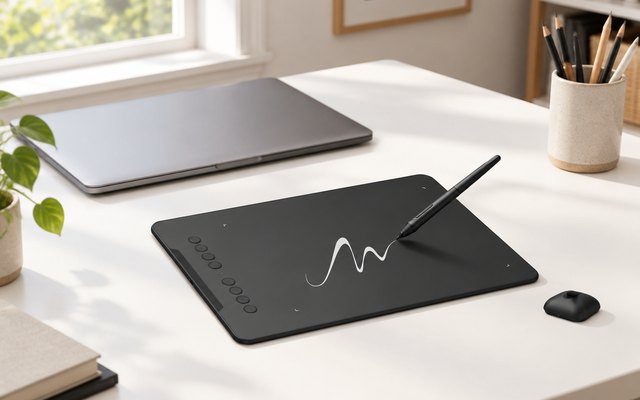
#2XPPen Deco 01 V3 Drawing Tablet
$30–$50
Ten by 6.25 inches of drawing area, a pen that feels 16,384 levels of pressure and eight shortcut keys, and it works with nearly anything: Windows, Mac, Chromebook, Android and Linux.
What owners say: Owners call it intuitive and quick to set up on Windows and Mac, and it suits online instruction, math teaching included. The pen pressure and buttons divide opinion, and a few units stopped working entirely.
A closer look: Install XPPen’s driver from its website before plugging the tablet in: that’s what unlocks the pressure levels and the shortcut keys. Set the first few keys to undo, brush size and eraser. For an Android phone, the free XPPen Tools app matches the drawing area to the phone’s screen shape.
- 60° pen tilt
- Battery-free pen
- 8mm thick
- Install the driver first
- XPPen Tools app for Android
Best for: Wide strokes on Windows, Mac or Linux
- Drawing area
- 10 × 6.25in
- Pressure levels
- 16,384
- Shortcut keys
- 8
- Works with
- Windows, Mac, Chromebook, Android, Linux
- Screen to draw on
- No
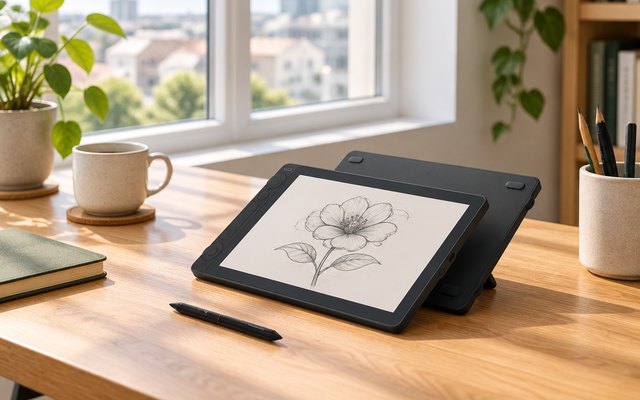
#3HUION Kamvas 13 (Gen 3) Drawing Tablet with Screen
$200–$300
Draw straight onto a 13.3-inch 1080p screen whose etched Canvas Glass gives the pen a paper-like bite and cuts glare. Each one is color-calibrated at the factory and comes with its certificate, and two dials and five quiet keys sit within reach for zoom, brush size and undo.
What owners say: The bright, crisp screen and its true-to-life color win the most praise, and some say drawing on it beats paper. Setup is easy for most but not all, Mac users report more trouble, and opinions differ on where the keys sit.
Heads up: It’s a screen for your computer, not a standalone tablet: it only works plugged into a computer or a compatible Android phone, and this version comes without a stand.
A closer look: A laptop with a full-featured USB-C port runs it from one cable; otherwise the 3-in-1 cable in the box does the job. With no stand in the box it lies flat on the desk, so propping the top edge up an inch or two gives a more comfortable angle for long sessions.
- Etched glass cuts glare
- Factory calibration certificate
- Paper-like feel for the pen
- 3 side buttons on pen
- One cable to USB-C laptops
Best for: Drawing on the screen
- Drawing area
- 13.3in screen
- Pressure levels
- 16,384
- Shortcut keys
- 5 + 2 dials
- Works with
- Windows, Mac, Linux, Android
- Screen to draw on
- 13.3in, 1080p
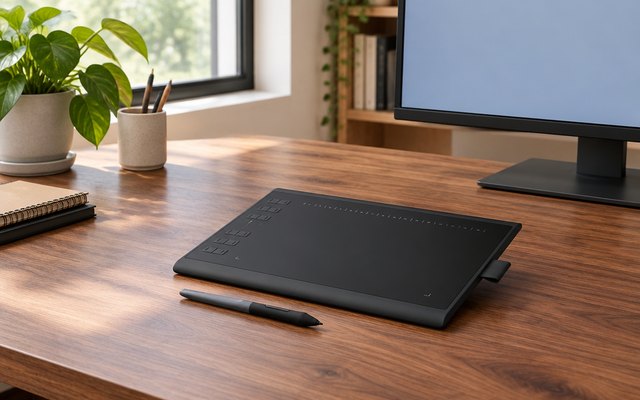
#4HUION Inspiroy H1060P Drawing Tablet
$30–$50
Twelve hard keys down the side and sixteen soft keys along the top, so a regular user can keep favorite brushes and tools under one finger. It’ll plug into an Android phone too.
What owners say: The roomy pad helps some avoid wrist strain, and beginners and intermediate users find setup easy. Results with software vary: smooth in most programs, laggy or unsupported in a few, such as Paintshop Pro.
A closer look: Left-handed? Turn the tablet around and set left-handed mode in the driver, so the keys sit by the other hand. A Mac needs a USB adapter for its cable, and Android phones connect through an OTG adapter; iPhones and iPads aren’t supported.
- Left-handed mode
- 60° pen tilt
- Battery-free pen
- Mac needs a USB adapter
- Not for iPhone or iPad
Best for: Artists who live on shortcuts
- Drawing area
- 10 × 6.25in
- Pressure levels
- 8,192
- Shortcut keys
- 12 + 16 soft keys
- Works with
- Windows, Mac, Android, Linux
- Screen to draw on
- No
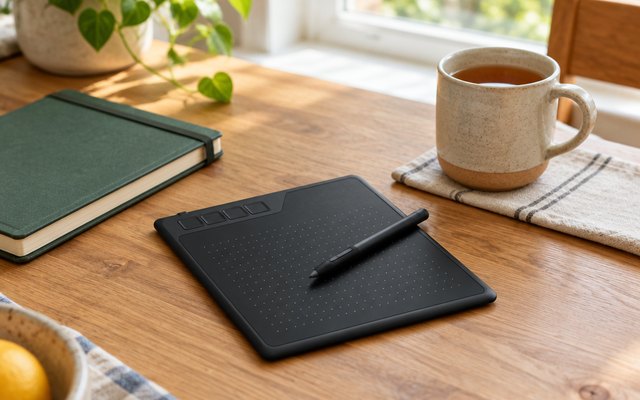
#5GAOMON S620 Drawing Tablet
$20–$30
Four shortcut keys and a battery-free pen on a slim 6.5 × 4in pad, a way to try digital drawing and see whether it sticks. It also handles signing PDFs and marking up slides.
What owners say: Rhythm-game players like it as much as artists do, and both beginners and seasoned users find the interface simple. Compatibility is patchy for some, with a few laptops refusing it, and others find the shortcut buttons awkwardly placed.
A closer look: Rubber feet on the underside keep the pad from sliding on a smooth desk, and the pen is read from about 10mm above the surface, so the cursor follows it before a stroke lands. Android phones work with it too, though iPhones and iPads don’t.
- Battery-free pen
- Cursor follows pen from 10mm
- Rubber feet stop sliding
- Signs PDFs, marks up slides
- Has a left-handed setting
Best for: Trying digital art
- Drawing area
- 6.5 × 4in
- Pressure levels
- 8,192
- Shortcut keys
- 4
- Works with
- Windows, Mac, Android
- Screen to draw on
- No
How they compare
Swipe sideways or rotate device to see all 5.
| Feature | #1Wacom Intuos S | #2XPPen Deco 01 V3 | #3HUION Kamvas 13 | #4HUION H1060P | #5GAOMON S620 |
|---|---|---|---|---|---|
| Best overall | Best with a screen | Most shortcut keys | Best budget | ||
| Picked Rating | 9.1 | 8.8 | 8.8 | 8.6 | 8.6 |
| Price | $30–$50 | $30–$50 | $200–$300 | $30–$50 | $20–$30 |
| Drawing area | 6 × 3.7in | 10 × 6.25in | 13.3in screen | 10 × 6.25in | 6.5 × 4in |
| Pressure levels | 4,096 | 16,384 | 16,384 | 8,192 | 8,192 |
| Shortcut keys | 4 | 8 | 5 + 2 dials | 12 + 16 soft keys | 4 |
| Works with | Windows, Mac, Chromebook, Android | Windows, Mac, Chromebook, Android, Linux | Windows, Mac, Linux, Android | Windows, Mac, Android, Linux | Windows, Mac, Android |
| Screen to draw on | No | No | 13.3in, 1080p | No | No |
| Best for | Small desks and laptop setups | Wide strokes on Windows, Mac or Linux | Drawing on the screen | Artists who live on shortcuts | Trying digital art |
| Buy now | Amazon | Amazon | Amazon | Amazon | Amazon |
Photos are illustrative, some computer-generated. As an Amazon Associate we earn from qualifying purchases. It costs you nothing extra. How we pick · How this works.